



















👉 Filters and Views in IBM DOORS Next: What Do You Need to Learn?
- Choose and configure the columns your task needs →
- Save them as a personal or shared view →
- Filter requirements by attributes and links, including missing links →
- Combine AND and OR conditions in a single filter →
- Keep the document structure visible while filtering →
In complex and regulated programs, an IBM DOORS Next module can hold thousands of requirements with dozens of attributes and links. Views and filters turn that module into a focused and clear workspace for each task. This step-by-step guide shows you how to build a view, save it as personal or shared, and filter on attributes and links, for example, to find the stakeholder requirements that aren’t covered yet.
🔎 Start here for quick answers
- I need to create a view
- I need to filter requirements
- I need to find requirements with missing links
What Are Views and Filters in IBM DOORS Next?
In a DOORS Next module, views and filters decide what you see and what you don't.
First, column settings choose the columns, meaning which attributes and links are displayed, and in which order. Then, filters choose the rows: only the requirements that match your criteria are displayed. And finally, the view saves both. It means you can reopen it with one click, share it with your team, export it, or generate a report from it.

Why do views and filters matter?
As a project grows, a DOORS Next module can quickly hold thousands of requirements, dozens of attributes and links, and many contributors working on it at the same time. Without views and filters, everyone scrolls through the same long list to find what they need.
Views and filters reduce the information overload. Each task gets only the columns and requirements it needs: the high-priority requirements for a planning meeting, the stakeholder requirements missing a downstream link for a coverage check, or filtered results that still show the headings they belong to.
And because views can be shared, the teams can work from the same agreed picture. In a regulated project, where every requirement must be complete, covered, and approved for audits, this shared and consistent picture becomes indispensable.
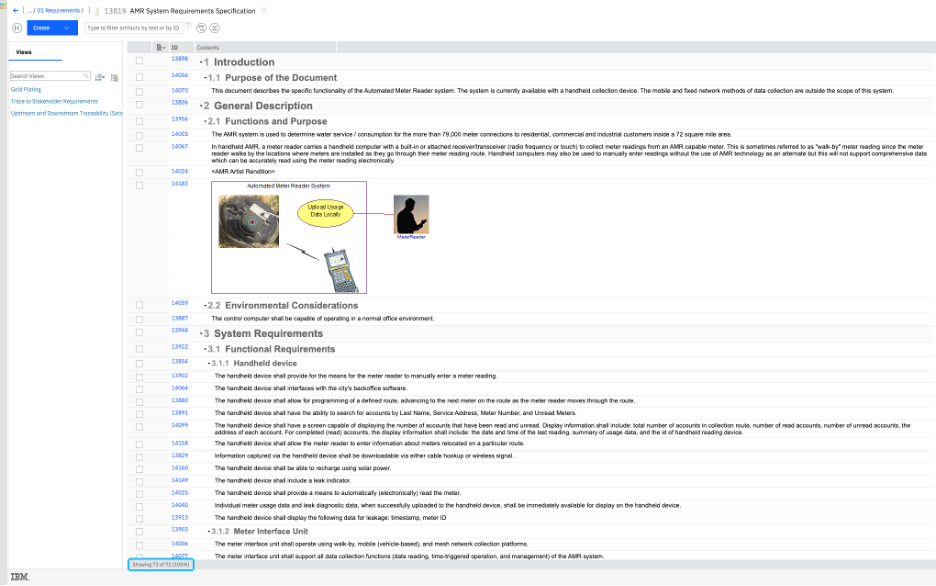
Fig. 1 –A module with its default columns
.png?width=1010&height=640&name=2-IBM-DNG-Module-with-focused-view%20(1).png)
Fig. 2 – A module with a focused view selected in the Views left panel
Prerequisites and Project Context
Before creating views and filters in IBM DOORS Next, check these points:
- Your IBM DOORS Next version: The procedures covered in this article are based on IBM DOORS Next 7.1 or later. Some options described here, such as OR groups in filters and the display of ancestors and descendants, were only introduced in version 7.1 and aren’t available in earlier versions.
- Permissions: Any project member can create and save a personal view. It’s different with Shared views: only administrators or users whose role includes the required permission can create or change them. If you need to create shared views for your team, ask your project administrator to give you a role that includes this permission.
- Scope of this article: We chose to focus on views and filters in modules, where teams do most of their daily work. Filters are also available on the Artifacts and Collections pages, but some options, such as OR groups, only exist for modules.
➡️ Train your teams: our IBM DOORS Next training enables your teams to adopt the tool efficiently and apply best practices in requirements management from the very beginning. Hands-on exercises cover attributes, views, filters, links, and impact analysis, so your teams can apply what they learn in their own projects.

How to Create and Save a View in IBM DOORS Next
Creating a view in IBM DOORS Next includes two steps: you choose the columns you want to display, then save the result for your team to reuse.
Procedure 1 – Configure the Columns
- Open the module you want to work in
- Right-click any column header. In the menu, the Show Columns section lists the available columns, and the ones already displayed are checked (✔️) (by default, ID and Contents). (See Fig. 3).
- Select Configure Columns to Display (or More) to open the Change Columns Display Settings dialog. (See Fig. 4).
- In the dialog, the Columns to show list on the right shows the columns already displayed, the same ones that were checked in the menu. The Select attributes or link types list on the left shows all the columns you can add. To find one quickly, type part of its name in the filter field, or click All under Choose artifact types or links to narrow the list by type.
- Select the attribute or link types you need, for example, Priority, Status, or Satisfied By, and click on Add.
- To hide a column, select it in Columns to show and click Remove
- Reorder the columns with Move Up and Move Down, then click OK.
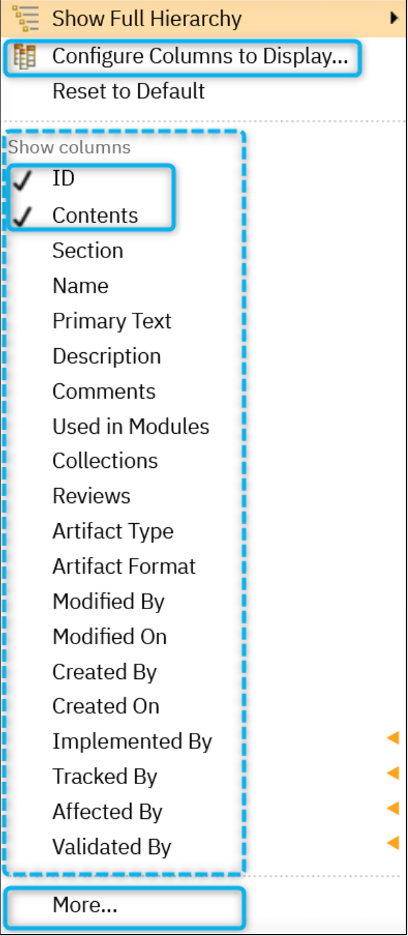
Fig. 3 – The Column menu
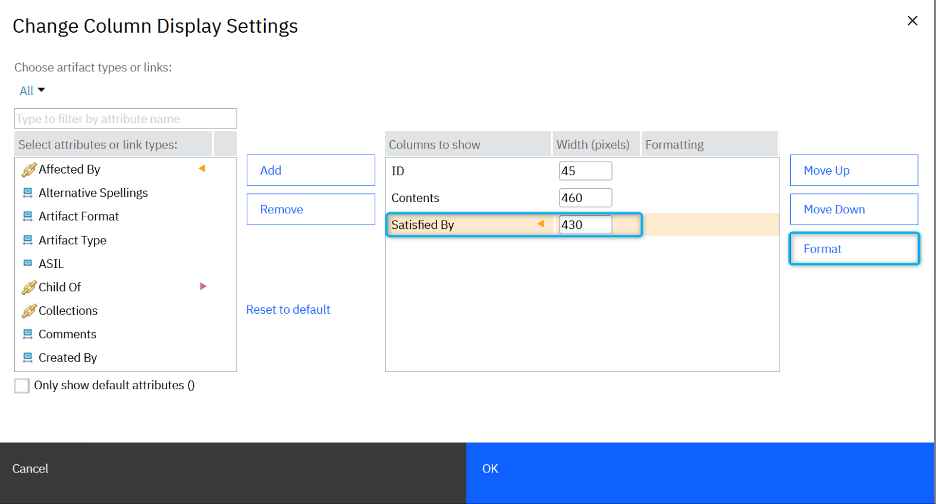
Fig. 4 – The Change Column Display Settings dialog
ℹ️ For link columns, select the link column in the dialog, click Format, then choose Wrap words to show all (Fig. 5). The full link information is then displayed even in a narrow column.
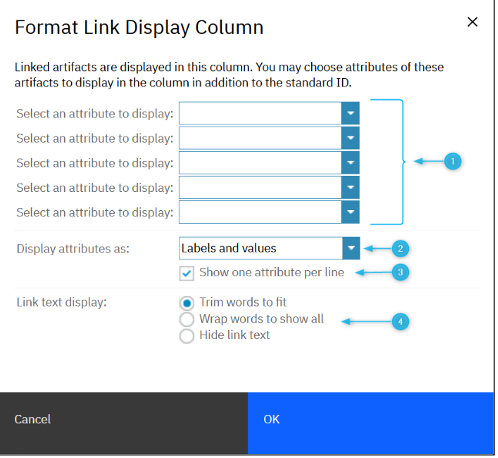
Fig. 5 – The Format Link Display Columns dialog
⚠️ At this stage, your column settings are temporary. If you log out, DOORS Next doesn’t keep them. To do so, save them as a view.
Procedure 2 – Save Your View
- In the Views panel on the left of the module, click the Save as new view icon (See Fig. 6). The New View dialog opens.
- Enter a clear name and a short description of what the view shows.
- Under Type, choose Personal (only you can see it) or Shared (the whole project team can see it). In the Views panel, personal views appear in green and shared views in blue.
- Choose where the view is visible: Just this module, All modules of this type, or All modules.
- For a shared view, under Who can see this view, click Change... and select the project roles that need it. By default, the view is visible to everyone.
- Optional: Select Make this a preferred view. It then appears bold in the Views panel, so your team can spot the most important views at glance.
- Click OK
ℹ️ Choose the type and scope carefully. Once a view is saved, you can still edit its name and preferred status, but not its type (personal or shared) or where it's visible. To change those elements, save a new view with the same name and the right settings, then delete the old one.
⚠️ If you have permission to change shared views, be careful not to overwrite a shared view by mistake. If you adjust one for your own task and save it, you change it for the whole team. To keep your changes for yourself, use Save as new view and create a personal view instead.
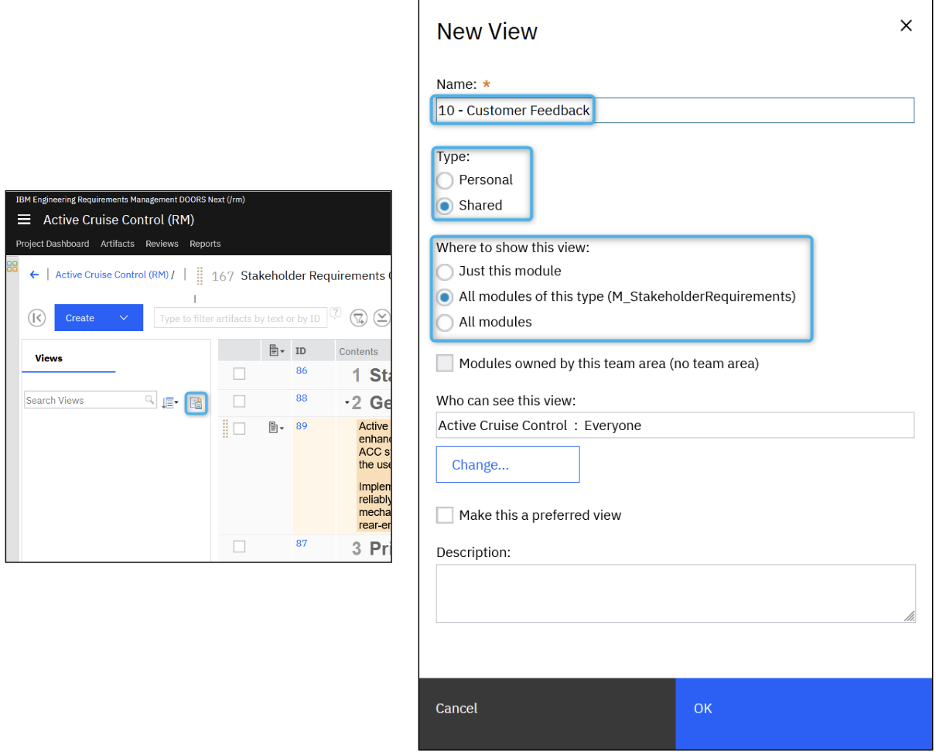
Fig. 6– The Views panel & the New View dialog: name and describe your view, choose Personal or Shared, choose the modules where it's visible, then select the roles that can see it.
How to Filter Requirements in a DOORS Next Module
Filters narrow a module down to the requirements you need to see. You can filter attribute values, links, or combine several conditions, then save the result in a view.
Procedure 3 – Add a Filter on an Attribute
- Open the module and apply the view you want to work with first. Its own filters then appear in the filter section.
- Click the Open filters icon. (See Fig. 7). The filter section opens above the module (See Fig. 9)
- Click Add filter. In the New Filter dialog, select the attributes to filter on, for example, Priority (See Fig. 7)
- Choose the condition. The available conditions depend on the attribute type. For a list attribute such as Priority, you can choose is any of (the attribute has one of the selected values) or is not any of (has none of them)
- Select the value on the right, for example, High, and click Add and Close.
- Repeat steps 3 to 5 for each additional condition.
- Click Apply to display the filtered requirements (See Fig. 9)

Fig. 7 – The Open Filters Icon
When you add multiple conditions using this procedure, a requirement must meet all of them to be displayed. For example, Priority is High and Status is Approved shows only the high-priority requirements that are already approved.
To adjust a filter later, change or remove a condition directly in the filter section (see the dedicated black icons), and don’t forget to click Apply (See Fig. 9).
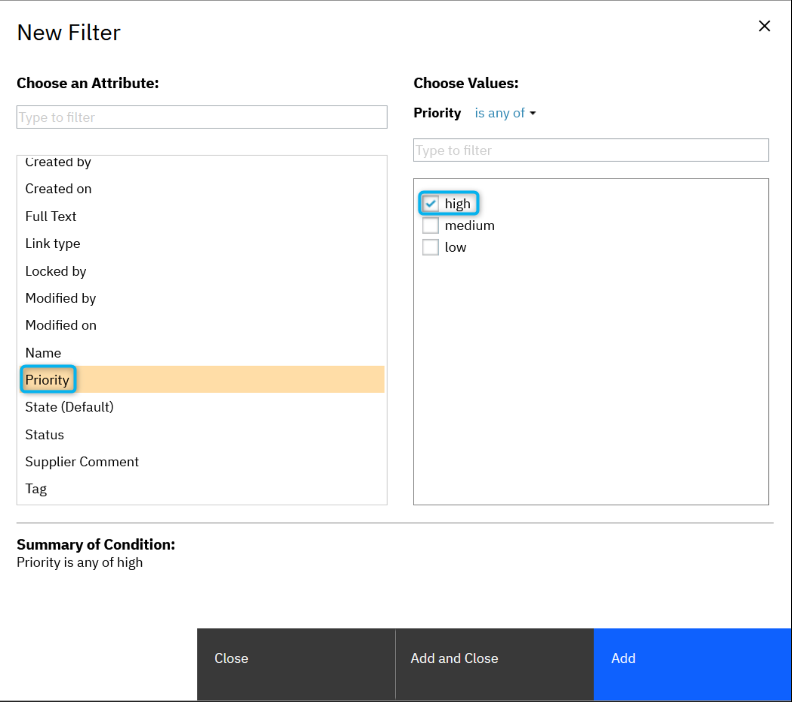
Fig. 8 – The New Filter dialog
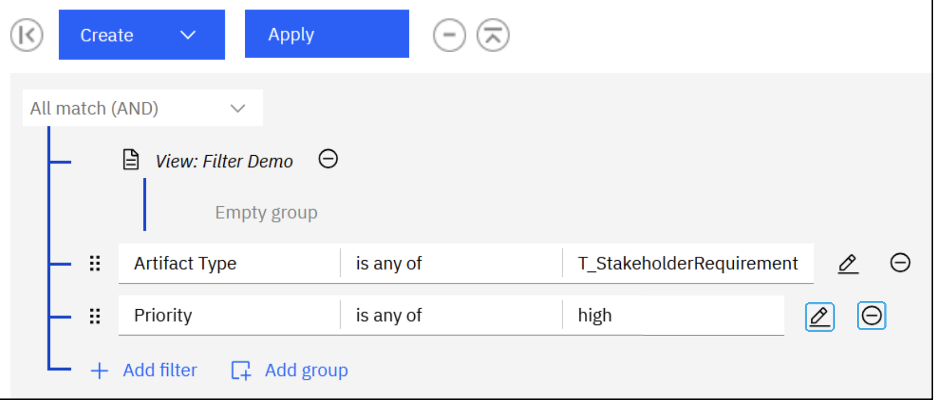
Fig. 9 – The filter section, where you can add, edit, or remove each condition
Procedure 4 – Combine AND & OR Conditions
Since the release of IBM DOORS Next 7.1, you can build more advanced filters by combining two logic operators:
- AND: A requirement must meet all the conditions. This is how DOORS Next combines conditions by default, as seen in procedure 3.
- OR: a requirement only needs to meet one of several conditions. To create an OR, you place these conditions in a dedicated group called Some match (OR).
- Click the Open filters section as seen in Procedure 3
- Add the condition that all requirements must meet, e.g., Artifact Type is System Requirement.
- Click Add group then change the group’s operator from All match (AND) to Some match (OR) (see Fig. 10)
- Click Add filter within the group. In the New Filter dialog, select Created On is (insert date 1), then click Add and Close.
- Click Add filter again inside the same group, select Created On is, and insert date 2. Click Add and Close.
- Click Apply
The result reads as follows:
Artifact Type is System Requirement AND Created On is [date1] OR Created On is [date2].
In other words, you are able to see every system requirement that was created during one of these two dates.
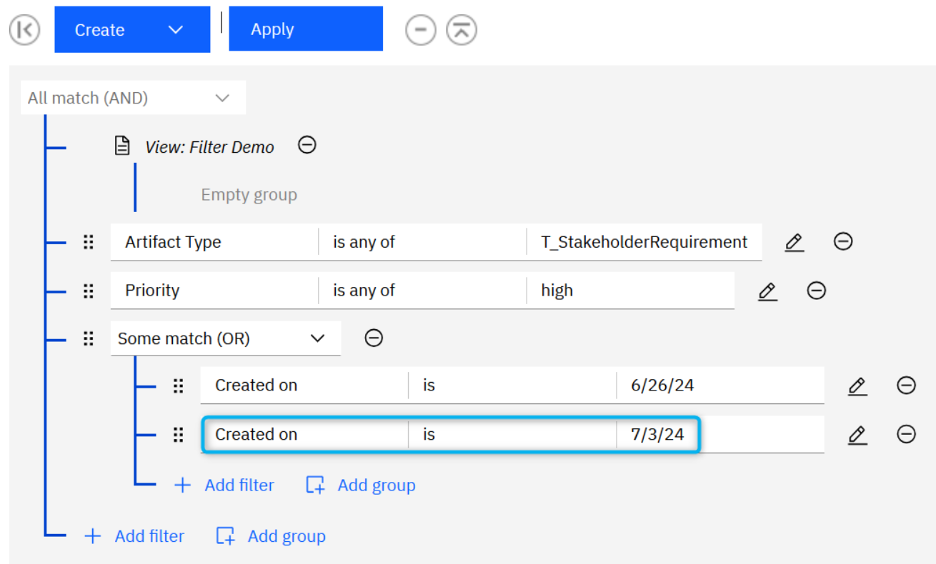
Fig. 10 – A filter combining an OR group with an AND condition
ℹ️ Not all attribute types can be used inside a group. In IBM DOORS Next 7.1, basic attribute types can be used in groups, but enumerations (for example Priority or Status), tags, links, or full-text filters are not supported.
Do you need more advanced combinations than native groups allow?The Complex Filter widget, part of SodiusWillert Requirements Management Widgets, extends DOORS Next filtering features. You can build nested filters and combine conditions across attributes with logical operators. Every requirement that matches the filter is automatically tagged, so you can display the results in any view with a simple filter on that tag. You can also save your filters and reuse them, for example, before every review.
|

Procedure 5 – Filter on Links
Link filters show which requirements have, or don't have, a given relationship. This is the basis of any coverage check. For example, you can instantly list the stakeholder requirements that no system requirement satisfies yet, instead of checking each one manually.
- Click the Open filters icon to expand the filter section as seen in Procedures 3 and 4
- Add the condition Artifact Type is Stakeholder Requirement.
- Click Add Filter and select a link type, for example Satisfied By. You can select several link types if needed.
- Keep exists, the default option, to see the requirements that already have this link, for example, the stakeholder requirements already satisfied by at least one system requirement.
- Or choose does not exist to see the ones that don’t. These are your coverage gaps. (See Fig. 12)
- Click Add and Close. Then click on Apply.
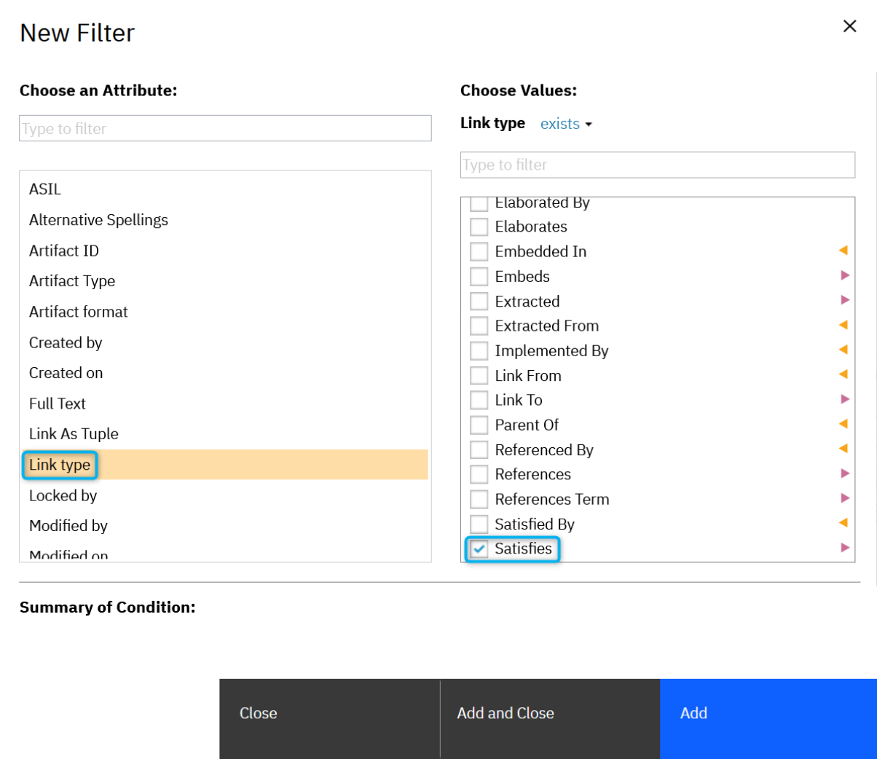
Fig. 11 – The New Filter dialog to choose a Link type
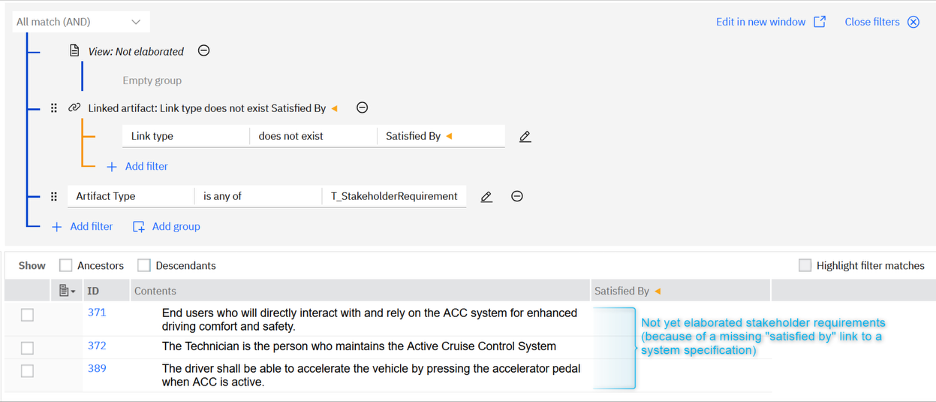
Fig. 12 – Combining a link filter with an Artifact Type filter to find coverage gaps
📖 For the basic coverage check, read our article How to Set Up, Create and Use Traceability Links in IBM DOORS Next.
Keep the Document Structure While Filtering
When a filter is active, only the matching requirements are displayed, so you can lose track of the chapter they belong to. Since DOORS Next 7.1, you can display their context with options located just above the column headers.
- Ancestors: displays the parent artifacts above each match, usually headings, up to the top level of the module
- Descendants: displays the artifacts located below each match
- Highlight filter matches: shows the requirements that match the filter in light blue, so you can tell them apart from their ancestors and descendants. (See Fig. 13)
These options appear automatically as soon as a filter is active (See Fig. 12). The Ancestors and Descendants settings can be saved in a view. Highlighting is a personal preference and isn't saved with the view.
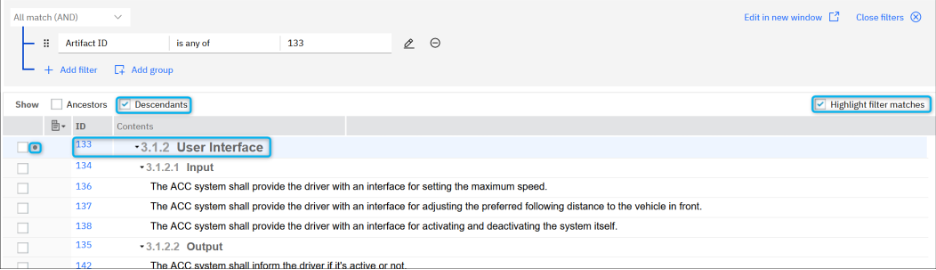
Fig. 13 – A filtered module showing Descendants, with filter matches highlighted. The filter match (ID 133) has a light blue background
ℹ️ To reuse your filter, save it in a view, as in Procedure 2. The view then stores both your columns and your filters, including the Ancestors and Descendants settings.
Best Practices: How to Keep the Views Useful for the Whole Team?
Views are quick to create, and that's exactly why they can pile up. A few simple rules keep them clear and reliable over time and for everyone involved in a program.
1. Use personal views by default.Create a personal view for your own tasks. Maintain shared views for needs the entire team has agreed upon, such as a review, a coverage check or an export for a customer.
2. Agree on shared views before creating them.
A shared view changes what everyone sees, and its type can’t be changed afterwards. Check with the people who will use it which columns and filters they need, and use Who can see this view (see Fig. 6) to limit it to the relevant role.
3. Name views so anyone understands their purposeCombine the purpose and the scope, add a number prefix to control their order, since views are listed alphabetically, for example: 10_REV_Readiness_SysReq or 20_COV_StakeholderReq_SatisfiedBy
Avoid generic terms such as "My view 2" or "New view” and never give two views the same name.
4. Always add a description.In one sentence, say what the view shows and when to use it. Your colleagues will pick the right view without opening each one.
5. Give shared views an owner.Make one person, such as a lead engineer or a project administrator, responsible for the shared views. They will review the list regularly and delete the views nobody uses anymore, so the Views list in the left sidebar (under the label Views) stays clear.
⚠️ Deleting a view that is shown in all modules, or in all modules of a type, removes it from those modules too.
6. Use the preferred view sparingly.Mark as preferred, shown in bold, only the view you, or your team, open every day.
7. Choose where to show the view before saving it.You can’t change this setting afterwards. With All modules of this type, the view is available in every module of the same type, including modules created later.
8. Keep one view with all attributes and links.In a baseline, you can’t save changes to a view. If you need to export attribute values or links from a baseline to a spreadsheet, you need a view that already shows those columns.
📖 To learn more about baselines, read our article Best Practices for Managing Baselines with IBM DOORS Next.
Conclusion
Views and filters are what make an IBM DOORS Next module easier to work with every day. Once the right columns and filters are saved, your teams no longer spend valuable time scrolling through hundreds of requirements. They open the view that answers their questions, whether it’s finding the high-priority system requirements, checking which stakeholder requirements aren’t covered yet, or reading the results without losing the document structure.
➡️ Contact our team if you have questions about views, filters, or any other topic related to IBM DOORS Next.



Leave us your comment