





















Many engineering teams have at least one system that nobody fully understands anymore. The developer who originally created it has left, the documentation is minimal, and the model (if there ever was one) is likely out of date. So, getting back to a working understanding of that codebase can take weeks. And that's if they're lucky...
Reverse engineering is commonly suggested as a solution within IBM Rhapsody. However, the process of reverse engineering can be complex, time-consuming, error-prone, and generally unpopular among team members. On top of that, Rhapsody's built-in reverse engineering is limited to C, C++, and Java. For any other language or format, IBM Rhapsody cannot help you.
This is where AI can make a significant difference. In this article, I’ll show you how to use AI Modeling Assistant for IBM Rhapsody to reverse engineer existing code and design artifacts directly into a Rhapsody model, using nothing but natural language prompts.
👉 What you’ll learn in this article:
-
How to give an AI assistant access to your source files directly from IBM Rhapsody →
-
How to handle sequence diagrams, one of the trickier diagram types in Rhapsody, with AI assistance →
What Reverse Engineering Actually Is About?
Reverse engineering is often misinterpreted as just reading code.
In fact, reverse engineering means understanding the original design intent, which includes identifying existing classes, their relationships, the system's behavior across various states, and how components interact over time. However, this information is rarely compiled in one single place.
In the field of embedded systems engineering, the challenges are even more compounded. Codebases may combine C, C++, and specialized configuration files. Teams may also work with formats Rhapsody does not support, such as PlantUML, and may wish to visualize that 'code' in a model (even though Rhapsody cannot generate it natively). And while Rhapsody does include built-in reverse engineering for supported languages such as C, C++, and Java, that capability applies a fixed set of structural rules to the output.
What teams typically need is more flexibility: the ability to reverse engineer non-standard formats, make the right decisions about how elements should be represented, and get a usable model without writing custom scripts.
What Can Be Reverse Engineered in IBM Rhapsody?
IBM Rhapsody offers built-in support for reverse engineering C, C++, and Java code. The AI Modeling Assistant for IBM Rhapsody extends and enhances this functionality even further. As long as the source files are in textual format and you can explain to the AI how you want the content to be represented in Rhapsody, you can reverse engineer a variety of file types, including JSON files, JavaScript, PlantUML, or any domain-specific text format.
This is where AI introduces capabilities that traditional tools lack: the ability to interpret structures from formats that Rhapsody isn't designed to parse, while also making informed modeling decisions based on context.
You review and adjust the output (or ask the AI to do it!), while the AI handles the initial scaffolding.
Prerequisites
Before starting, here’s what you’ll need:
- IBM Rhapsody with a model loaded
- AI Modeling Assistant for IBM Rhapsody. Our extension is delivered as a standard Rhapsody profile. To add it, go to:
- File → Add Profile to Model,
- Navigate to the AI Modeling Assistant for IBM Rhapsody (SAM) folder
- Select the AI Modeling Assistant for IBM Rhapsody's profile (SAM.sbsx)
- An MCP-compatible AI assistant. I’m using Claude in this walkthrough, but any AI that supports Model Context Protocol will work. Check your AI client’s documentation for MCP configuration details.
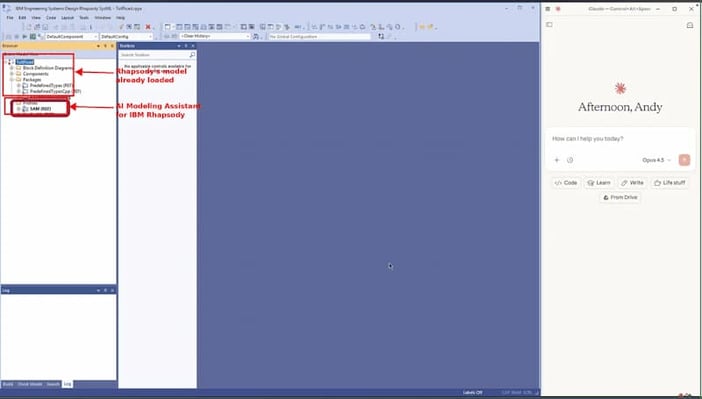
Fig. 1 – Setting up AI Modeling Assistant in IBM Rhapsody with Claude
ℹ️ There are no training phases and no complex configuration. AI Modeling Assistant for IBM Rhapsody already encodes over 30 years of MBSE and Rhapsody expertise into a set of tools your AI can call directly.

Step 1: Give Your AI Access to Files with SAM Folders
To enable the AI to reverse engineer code, it must be able to read the source files. Some desktop AI clients can access your filesystem directly, while most web-based clients cannot.
The AI Modeling Assistant for IBM Rhapsody addresses this limitation with SAM Folders. Those are named folder references that you can configure within the extension to point to specific locations on your hard drive. The path can be absolute (a full path from the root of your drive) or relative to the location of the AI Modeling Assistant profile file on disk.
Once configured, the AI can read any text files stored in these folders, including source code in languages like C, C++, Java, JavaScript, as well as text-based modeling formats such as PlantUML or any other files, for example JSON and batch files. In practice, it means you can reverse engineer almost any textual artifacts into a Rhapsody model.
The AI Modeling Assistant for IBM Rhapsody profile comes with one SAM Folder already configured, which points to the JavaDoc for the Rhapsody API (See Fig.2). This setup provides the AI with immediate access to API documentation during modeling sessions, which is useful if you are writing your own helpers for Rhapsody.
Note that you can create additional folders alongside this one. For this walkthrough, I have added another SAM Folder that directs to a local directory containing PlantUML files. These files outline an alarm system. It includes a class diagram (with classes, attributes, operations, and relationships) a state machine for the Alarm System class, and a set of sequence diagrams located in a sub-folder.
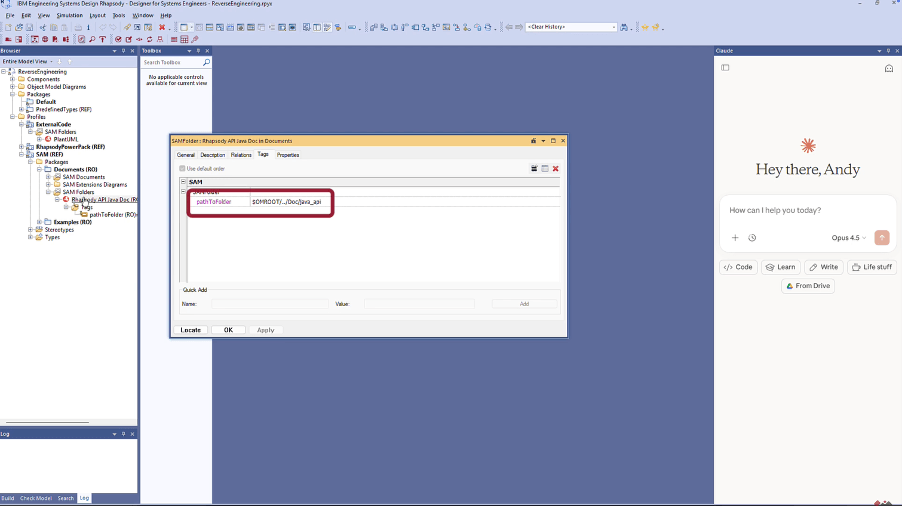
Fig. 2 – SAM Folders configured in AI Modeling Assistant for IBM Rhapsody
Step 2: Learn What’s Available
Once the folders are configured, the first step is to check that the AI has access to the files.
I start a new chat in Claude and ask: “What folders are available in Rhapsody?”
Claude calls AI Modeling Assistant for IBM Rhapsody and reports back the two configured folders: the PlantUML source folder and the Rhapsody API JavaDoc folder from the default profile.
I then ask Claude to list the contents of the PlantUML folder, including its sub-folders.
Within seconds, Claude lists all the PlantUML files by name. (See Fig. 3)
We now know exactly what we’re working with before a single element has been created.
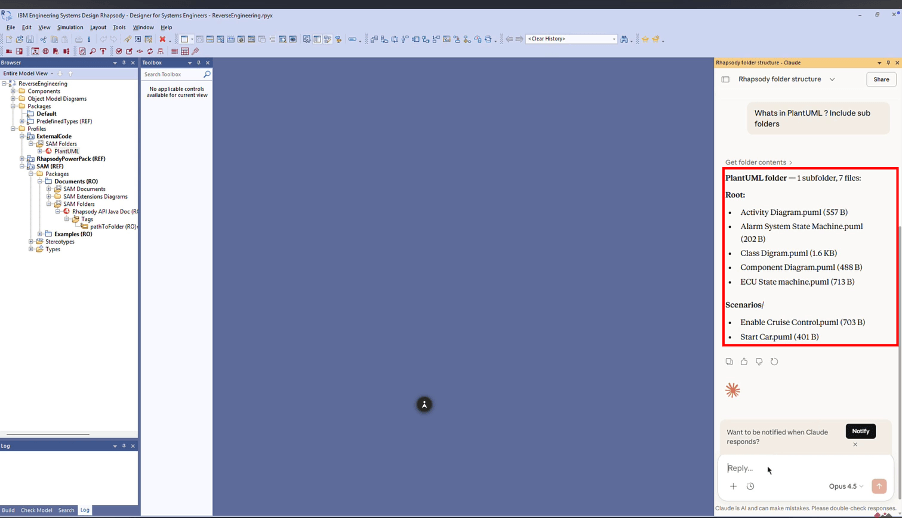
Fig. 3 – Claude listing available folders and PlantUML files
Step 3: Reverse Engineering the Class Diagram
With the files visible, I ask Claude to reverse engineer the class diagram from the PlantUML. I include one specific instruction: “use Triggered Operations rather than standard operations”. This matters because we plan to import the state machine next, and triggered operations can be used as triggers on state transitions whereas plain operations cannot.
This is a great example of steering the AI to produce the model you want from a language which isn’t UML or SysML-based. For larger sets of ‘modeling rules', you could author them in SAM Documents or Skills and have the AI read that first rather than manually prompting.
Claude reads the PlantUML file and:
- Creates the classes with their attributes
- Applies triggered operations
- Establishes the relationships between classes
- Generates a diagram showing the result (See Fig. 4)
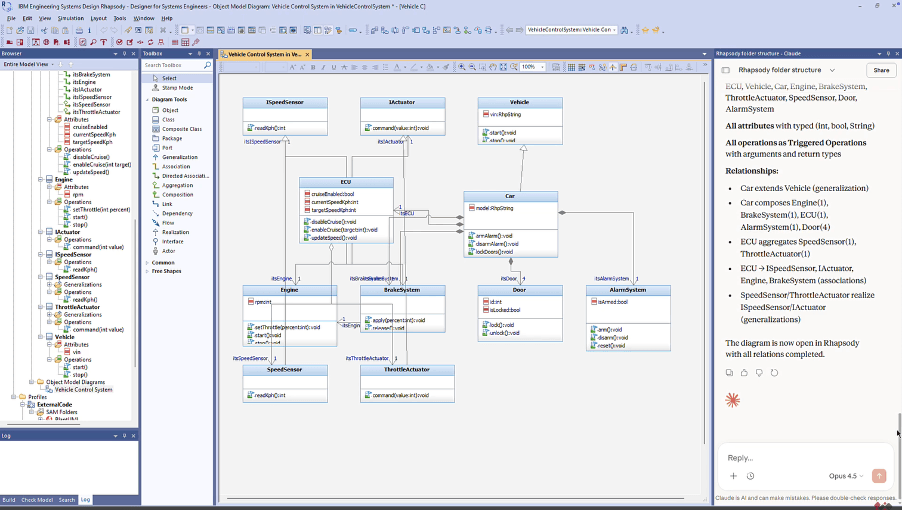
Fig. 4 – Class diagram reverse engineered into Rhapsody from PlantUML
Step 4: Reverse Engineering the State Machine
Next, I ask Claude to read the alarm system state machine from the available folders and add it to the existing Alarm System class. Including this context in the prompt is important: the AI needs to know where to look and what it’s extending, rather than creating elements in a new location.
The state machine appears in Rhapsody under the Alarm System class, correctly structured as a statechart, with states and transitions triggered by the triggered operations we created in the previous step.
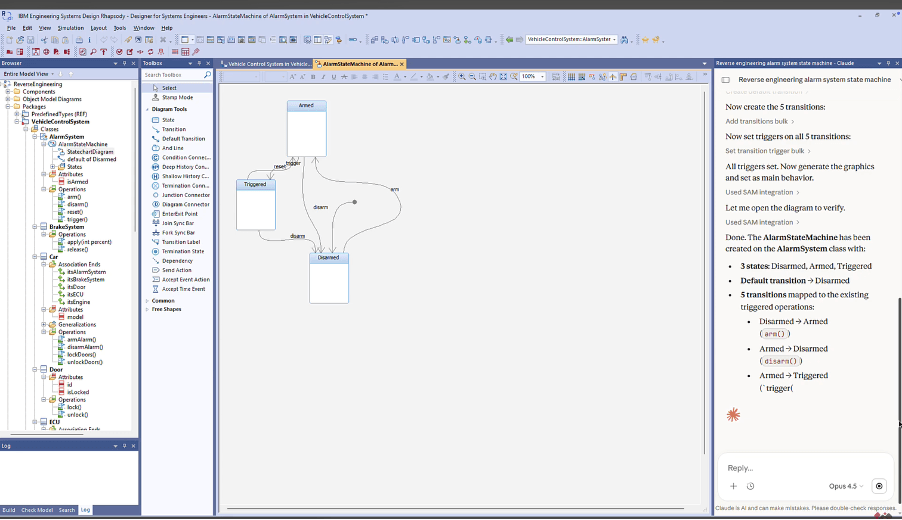
Fig. 5 – Alarm system state machine imported into Rhapsody
Step 5: Reverse Engineering the Sequence Diagram
Sequence diagrams are one of the trickier areas in IBM Rhapsody. The tool has specific structural requirements, and getting the lifelines, messages, and collaborations right is essential.
Before asking Claude to reverse engineer the sequence diagram, I prompt it to read the available skills first. AI Modeling Assistant for IBM Rhapsody includes built-in guidance on how to handle Rhapsody-specific constructs correctly, and sequence diagrams benefit from it.
I then ask Claude to read the sequence diagram PlantUML from the sub-folder and create it in Rhapsody.
The result is a faithful rendition of the original sequence diagram, with lifelines, messages, and interactions properly represented in the Rhapsody structure.
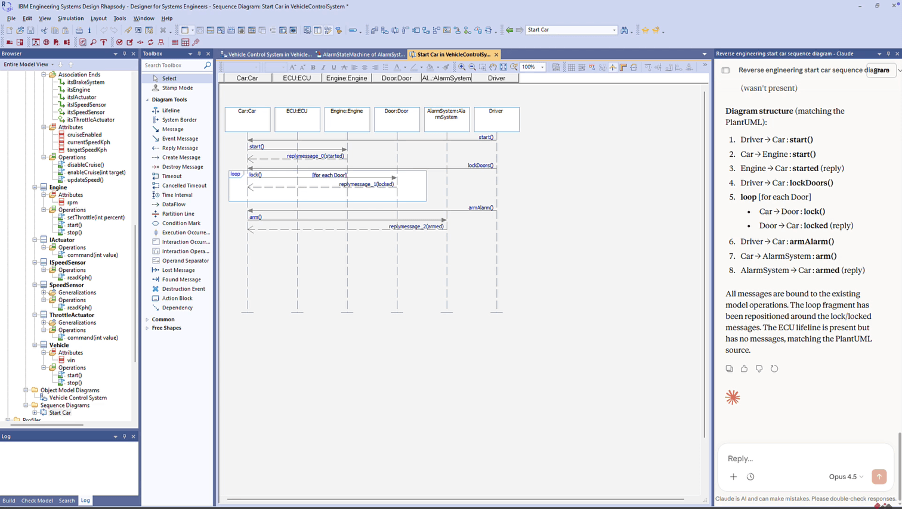
Fig. 6 – Sequence diagram reverse engineered into Rhapsody from PlantUML
In Summary
Starting from a folder of PlantUML files, we have:
- Configured SAM Folders to give Claude access to the source files on disk
- Explored available files through natural language queries
- Reverse engineered a class diagram, a state machine, and a sequence diagram into a live Rhapsody model
No scripting is required. There is no need to manually create elements, and you won't have to switch between tools.
📺 Watch the full walkthrough: How to Reverse Engineer Code and Models into IBM Rhapsody with AI Modeling Assistant for IBM Rhapsody
📖 Read also another walkthrough about creating a model from a PDF with AI in IBM Rhapsody
➡️ Contact us to schedule a demo or request a walkthrough tailored to your use case

FAQ
What file types does AI Modeling Assistant for IBM Rhapsody support?
Currently, it supports Rhapsody models, PDFs, JSON files, and any textual source format accessible via SAM Folders. Additional formats will be added over time.
Does this only work with PlantUML source files?
No. Any textual file format can be submitted to the AI through a SAM Folder. C, C++, Java, JSON, JavaScript, and batch files work as well. You tell the AI how you want the content represented in Rhapsody, and it handles the modeling.
Do I need to point the AI at specific files, or can it explore on its own?
Both. You can ask Claude what folders and files are available, and it will report back the complete inventory. You can also include a direct instruction pointing to a specific file if you already know what you need.
How does this compare to Rhapsody’s built-in reverse engineering?
IBM Rhapsody includes built-in reverse engineering for C, C++, and Java. AI Modeling Assistant for IBM Rhapsody can handle those languages too (with more flexibility than the in-built solution going beyond the fixed output format it supports), but it also covers formats that Rhapsody does not natively support.
Do I need to include context when starting a new chat session?
Yes. If you start a fresh chat mid-session, include enough context in your first prompt: which model is loaded, which files to read, and what the AI is extending. This keeps the output accurate and avoids duplicating elements that already exist.




Leave us your comment