






















If you work with IBM Rhapsody, there is a good chance many of your projects start the same way: someone sends you a PDF full of textual requirements and expects a model. What follows is usually hours of manual work, reading through the document, identifying requirements, creating model elements one by one, structuring them into packages, and hoping nothing gets lost along the way.
AI can help streamline this process. With the right tooling, an AI assistant can read that PDF, extract the requirements, and build the initial model structure in IBM Rhapsody. You'll still want to review and refine the design, but the heavy work is done. Plus, the model stays faithful to what the PDF actually contains.
In this article, I’ll walk you through how to do this using AI Modeling Assistant for IBM Rhapsody, SodiusWillert’s AI extension that brings AI-assisted MBSE directly into the Rhapsody environment.
👉 What you'll learn in this article:
- Read a PDF document directly from within Rhapsody using AI →
- Transform textual requirements into structured model elements automatically →
- Enrich requirements with metadata like priority tags →
- Create a custom table view to review your model →
Prerequisites for AI-Assisted Modeling in IBM Rhapsody
Before we dive in, here’s what you’ll need:
1) IBM Rhapsody with a model loaded
2) The AI Modeling Assistant for IBM Rhapsody profile. Our extension is delivered as a standard Rhapsody profile. To add it, go to:
- File → Add Profile to Model,
- Navigate to the AI Modeling Assistant for IBM Rhapsody folder
- Select the AI Modeling Assistant for IBM Rhapsody's profile
ℹ️ Note that each provider handles this slightly differently. Please check their documentation first.
There is no training phase and no complex setup. AI Modeling Assistant for IBM Rhapsody already contains over 30 years of model-based systems and software engineering experience and extensive knowledge of the Rhapsody API, distilled into a set of tools that let the AI drive Rhapsody like an expert.
➡️ Read more on AI Modeling Assistant for IBM Rhapsody
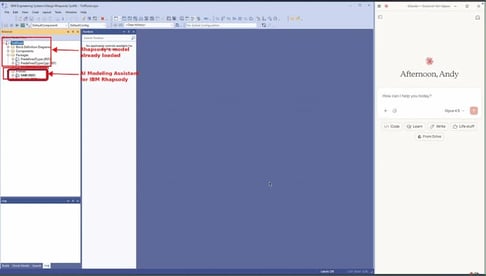
Fig. 1 – Setting up AI Modeling Assistant in IBM Rhapsody with Claude

Step 1: Reading a PDF Document in IBM Rhapsody with AI
In this scenario, we have a Rhapsody model that contains a controlled file: a PDF with textual requirements. Of course, there are many other ways to bring requirements into Rhapsody, for example, with the help of ReqXChanger or OSLC integrations. But in this scenario, let the AI handle it.
The first step is straightforward: you select the PDF in IBM Rhapsody and ask Claude to read the document currently selected in the model. The document doesn’t have to be in the model. This is just for convenience in this scenario.
Our AI Modeling Assistant for IBM Rhapsody includes tools that allow the AI to read documents and even existing models directly from within Rhapsody. So, even without deep knowledge of IBM Rhapsody, you can explore and understand a model.
You could also upload the PDF directly to Claude, but using our assistant’s built-in reading tools allows AI assistants that don’t have that capability to still be able to read documents.
Within seconds, Claude has parsed the document and understands the requirements it contains (See Fig. 2). Now we can start building.
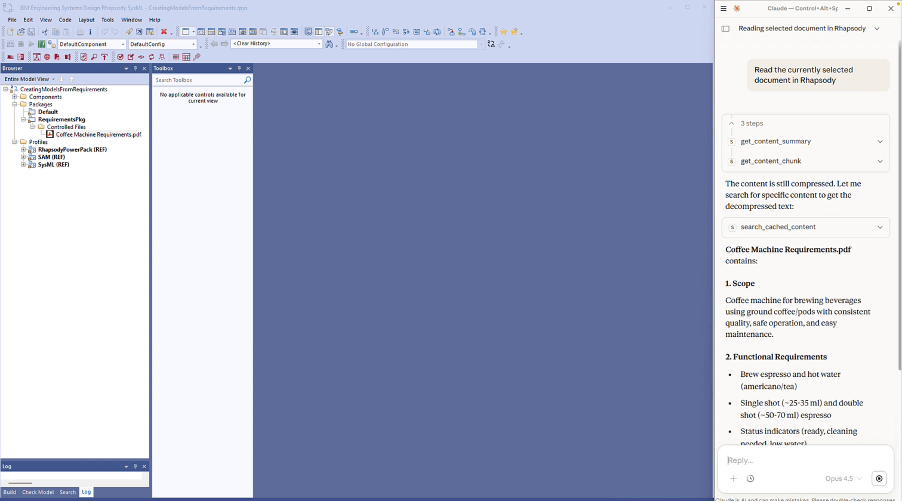
Fig. 2 – All requirements from the source PDF read, understood, and structured in minutes
Step 2: Turning Textual Requirements into Structured Model Elements
I simply ask Claude to create those requirements as model elements in IBM Rhapsody. Before it starts building, I also prompt it to read our built-in modeling guidelines and best practices (See Fig. 3). This is an important detail: our AI modeling assistant doesn’t just give the AI access to Rhapsody’s API. It also provides engineering best practices that guide how elements should be structured, named, and organized.
Claude processes the requirements and creates them as proper model elements, organized into packages. It even assigns requirement IDs that weren’t present in the original PDF (See Fig. 3).
What would have taken significant manual effort is done in a matter of minutes.
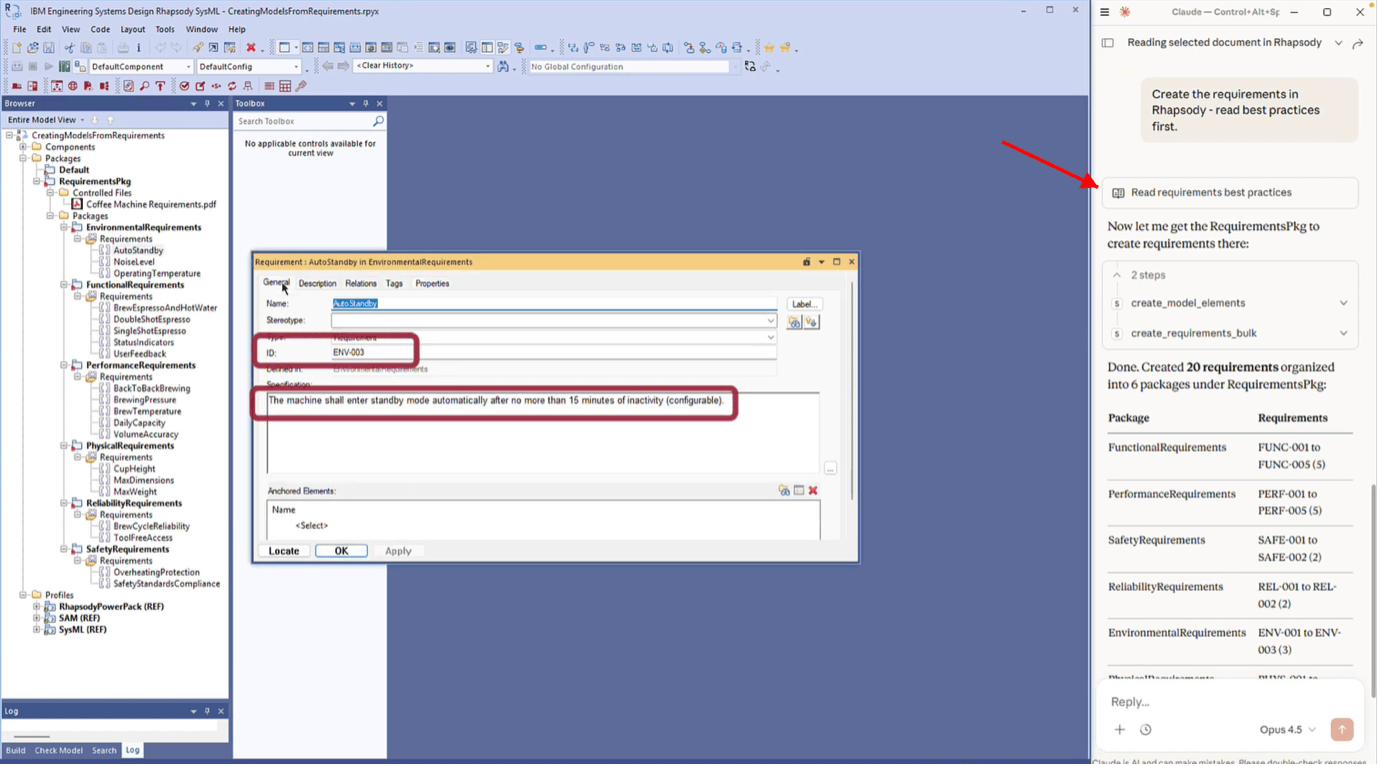
Fig. 3 – Requirements created as model elements with auto-assigned IDs and package organization
As I said above, you’ll still need to review and refine. But instead of starting from a blank page, you have a structured, organized baseline to work from. That’s the real value of AI-assisted MBSE: it doesn’t replace your judgment, but instead it eliminates the tedious scaffolding work so you can focus on the engineering.
Step 3: Enriching Your Rhapsody Model with Priority Tags
At this point, the requirements are in the model, but they lack metadata. Engineers typically enrich them with priorities, categories, or status fields. This is something our AI Modeling Assistant can handle as well.
I ask Claude to add a priority to each requirement using tags and to suggest actual priority values based on its understanding of the requirements.
Claude creates a proper enumerated type for the priority values, sets up a global tag in a new custom profile (See Fig. 4), and then assigns appropriate values to every requirement (See Fig. 5). If you already had your own profiles defining this kind of metadata, those would be used instead.
This follows a structured, standards-compliant approach where the AI creates proper enumerated types and tag definitions rather than simple text fields.
Of course, the AI’s suggested priorities are just a starting point. If you disagree with any of them, you can change the values directly in Rhapsody.
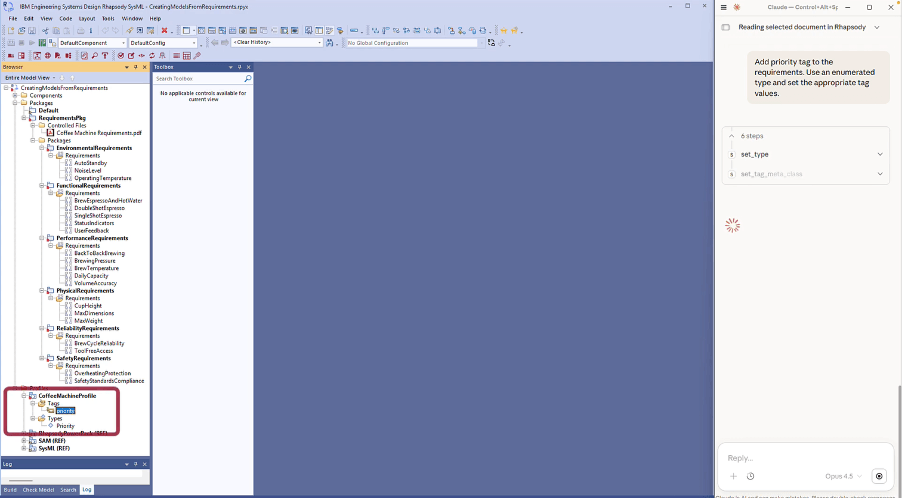
Fig. 4 – Custom profile with priority enumeration generated by AI
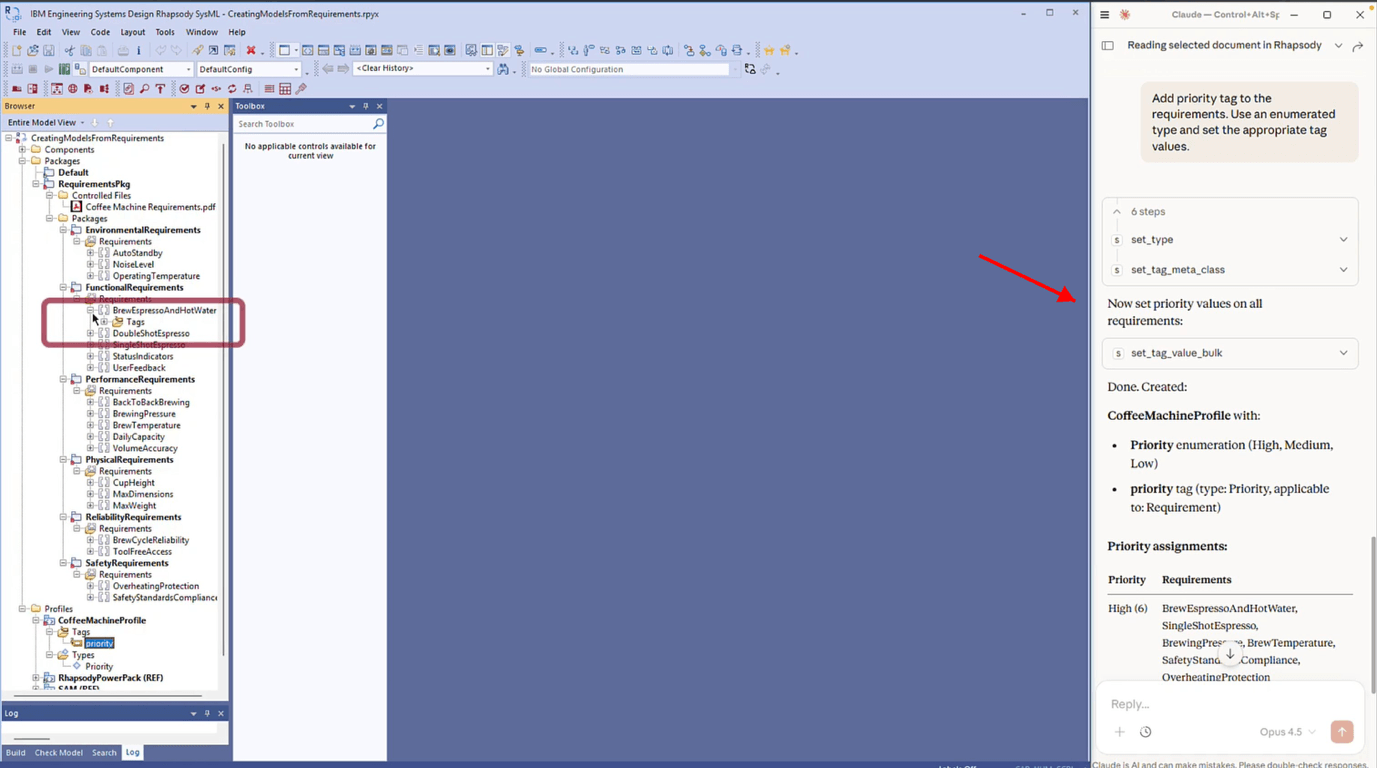
Fig. 5 – Priority values assigned to all requirements
Step 4: Visualizing Requirements in a Custom Rhapsody Table
We’ve got requirements with IDs, specifications, and priorities. But to actually review them efficiently, we need a good view. You can ask the AI Modeling Assistant to create such a view as a table. Rhapsody experts will know that it requires a Table Layout and then a Table View based on that layout – all of which are typically crafted by hand, at least until now.
I prompt Claude to create a custom table that shows the requirements along with their priorities. Within moments, a new table view appears in Rhapsody, displaying the requirements with their IDs, specification text, and priority values in a clean, readable format.
|
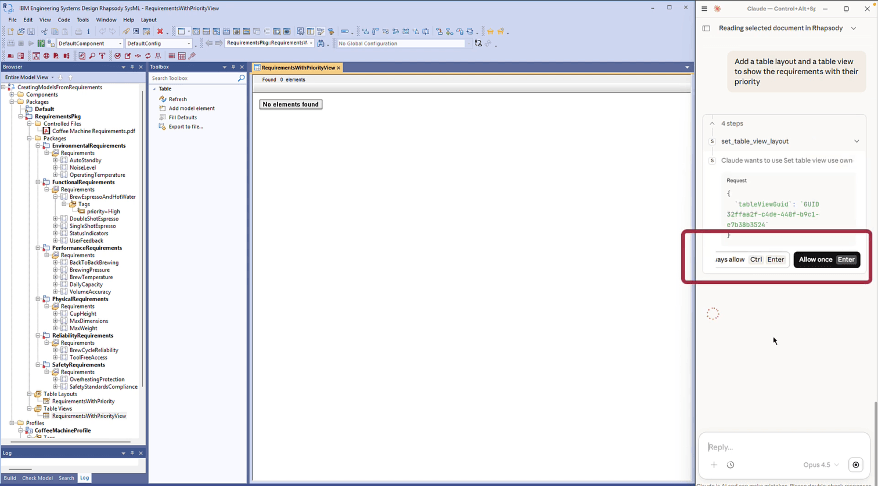
ℹ️ About this process During this step, Claude asked for permission to use a specific AI Modeling Assistant for the IBM Rhapsody tool (Fig. 6) . Please note that you are always in control of what the AI can and cannot do. You can approve actions one at a time or select “Always Allow” for tools you trust.
Fig. 6 – AI requesting user approval before executing a tool |
Since the priorities were created as enumerated types, you can also adjust them directly in the table view if needed. The whole setup is native Rhapsody, meaning no external tools, no exported spreadsheets. And if you want the table to report additional or alternative data, just ask, and the AI will oblige!
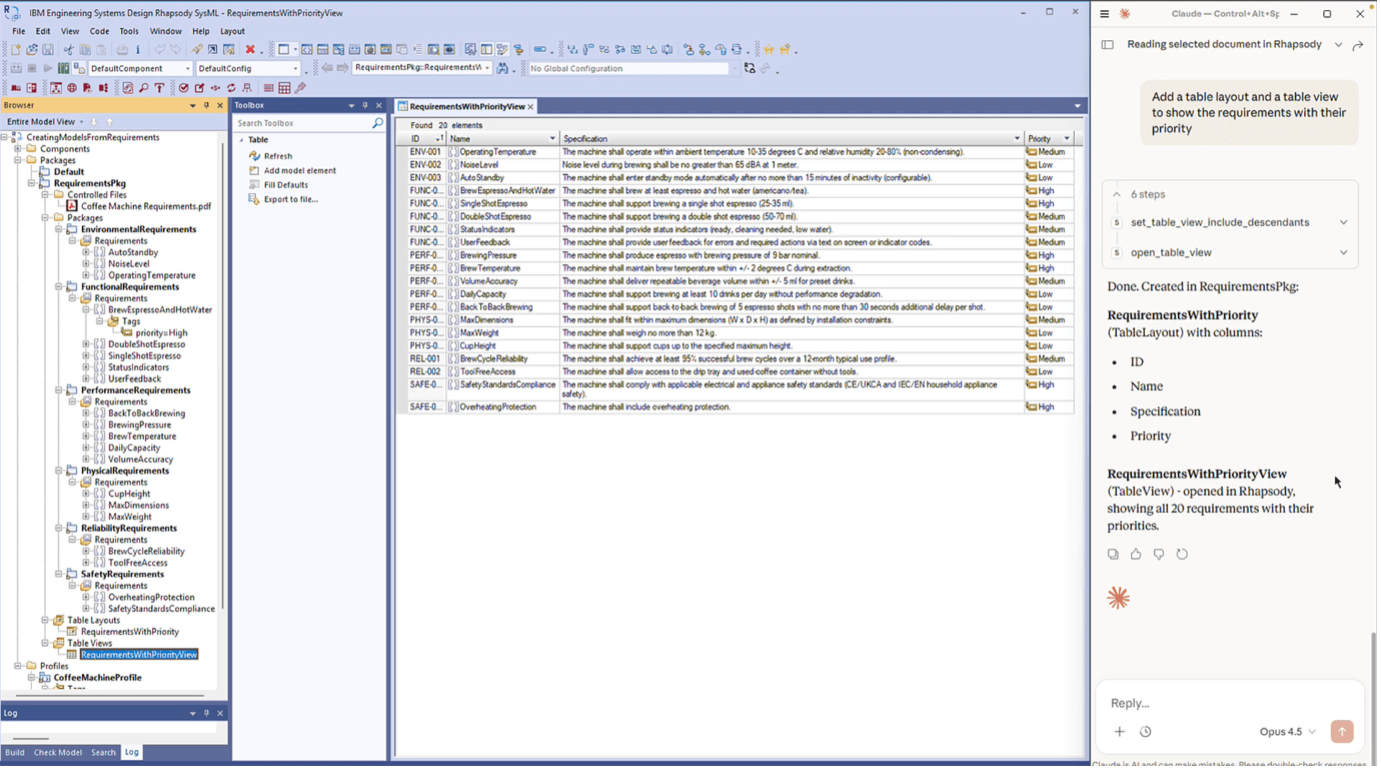
Fig. 7 – The new custom table showing the requirements along with their IDs, Specifications, and Priorities
In summary
Starting from a PDF of textual requirements, we can:
- Read the PDF directly from within Rhapsody using our AI Modeling Assistant
- Created structured requirements as model elements, complete with IDs and package organization
- Added priority metadata using properly structured tags and enumerated types
- Built a custom table view for efficient review
What AI-Assisted Model Creation from Documents Means for Engineering Teams
All of this happened inside IBM Rhapsody, driven by natural language prompts. No scripting, no manual element creation, no switching between tools.
For engineering teams, the impact is tangible:
- New team members who are still learning IBM Rhapsody can produce well-structured models from day one instead of struggling with the tool's learning curve.
- Experienced engineers save the hours they would normally spend on manual scaffolding and can focus on architecture and design decisions.
- And because the AI follows consistent modeling guidelines, the output is uniform across the team: fewer naming inconsistencies, fewer structural gaps to catch during reviews.
And this is just one use case for applying AI to system modeling. In upcoming articles, we'll explore other scenarios: reviewing and correcting existing models, reverse-engineering legacy code, working with domain-specific profiles, and many more.
So, stay tuned...
📺 Watch the full walkthrough on our YouTube channel: How to create a model from a PDF document with AI Modeling Assistant for IBM Rhapsody?
➡️ Want to see how AI Modeling Assistant for IBM Rhapsody works on your own models? Contact us to schedule a demo or request a walkthrough tailored to your use case.

FAQ
Does this approach only work with Claude?
No. AI Modeling Assistant for IBM Rhapsody works with any AI that supports MCP (Model Context Protocol). Claude is what we use in these demos, but you can connect your preferred provider.
Can I upload the PDF directly to the AI instead of reading it through IBM Rhapsody?
You can, but reading the document from within Rhapsody keeps the AI aware of the model context. It knows which model is loaded and where the document sits within it, which tends to produce better results.
How accurate are the generated requirements?
The AI produces a credible starting point, not a finished design. You should expect to review and refine the output. The value is in eliminating manual scaffolding work, so engineers can focus on actual engineering decisions.
What file formats are supported?
Currently, SodiusWillert’s AI Modeling Assistant for IBM Rhapsody supports Rhapsody models, PDFs, and JSON files. Additional document formats will be added over time.
How is my data processed?
AI Modeling Assistant for IBM Rhapsody runs inside your environment. It only processes the data you provide, and all outputs are transparent and reviewable.
How do I get started?
AI Modeling Assistant for IBM Rhapsody is delivered as a standard Rhapsody profile, and no complex installation is required. Contact SodiusWillert for licensing and setup details.




Leave us your comment